How to Calibrate Your Display Color in Windows 11

This article explains how to use Display Color Calibration to make your screen colors look better in Windows 11. It’s a simple built-in tool that helps your display show colors the way they should look.
Why Calibrate Your Display?
Your monitor’s colors may not be accurate right out of the box. Colors that look wrong can make it hard to enjoy photos, videos, or creative work. If you do graphic design or photo editing, bad colors are especially problematic. A well-calibrated display fixes these issues and makes everything look better.
What Happens When You Calibrate?
Calibration adjusts your display’s color, brightness, and contrast. Windows guides you through simple steps to fine-tune these settings. When done, your screen will display colors more accurately.
How to Calibrate Your Display in Windows 11
To calibrate display color in Windows 11, open Settings, navigate to System > Display, select your color profile, and click the Calibrate display option to launch the built-in calibration wizard.
- Open the Settings app. Click the Start menu and select Settings. Or press Windows key + I on your keyboard to launch it quickly. Windows Settings Settings app
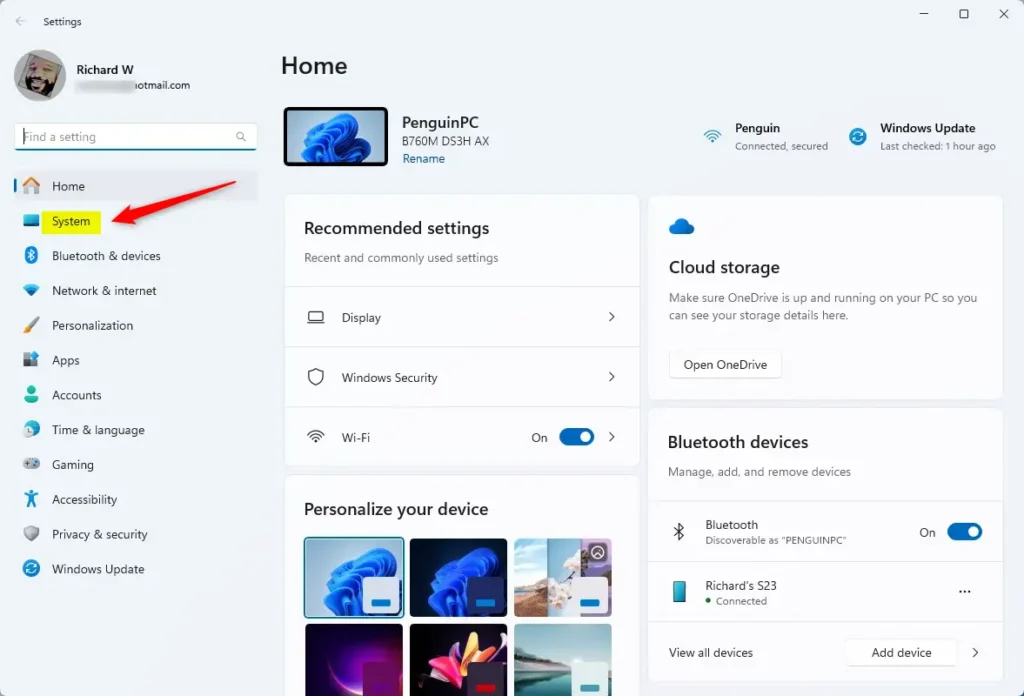
- When Settings opens, click the System button on the left side.

- Find and click the “Display” option on the right side to open display settings.
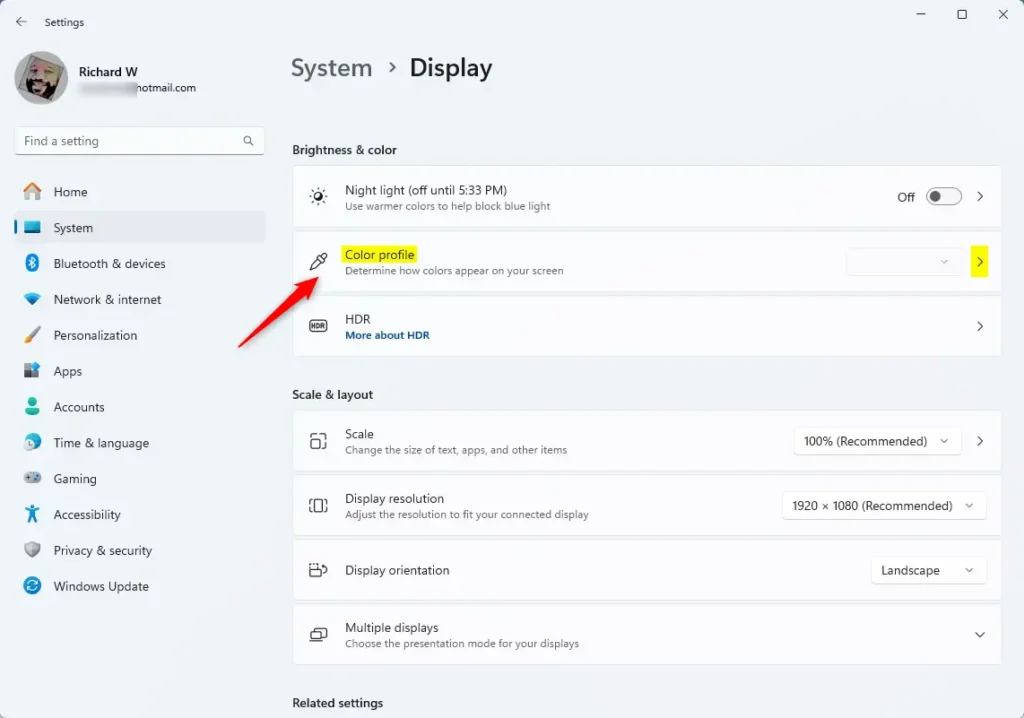
- Look for the “Color profile” section and click it to expand the options.
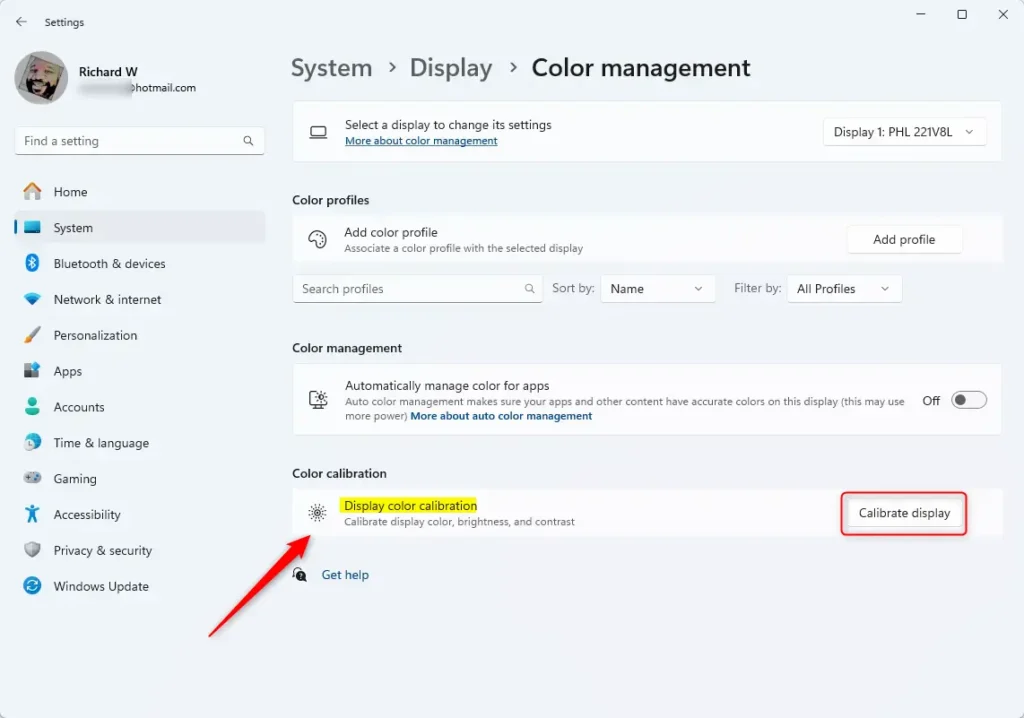
- Click the “Calibrate display” button.
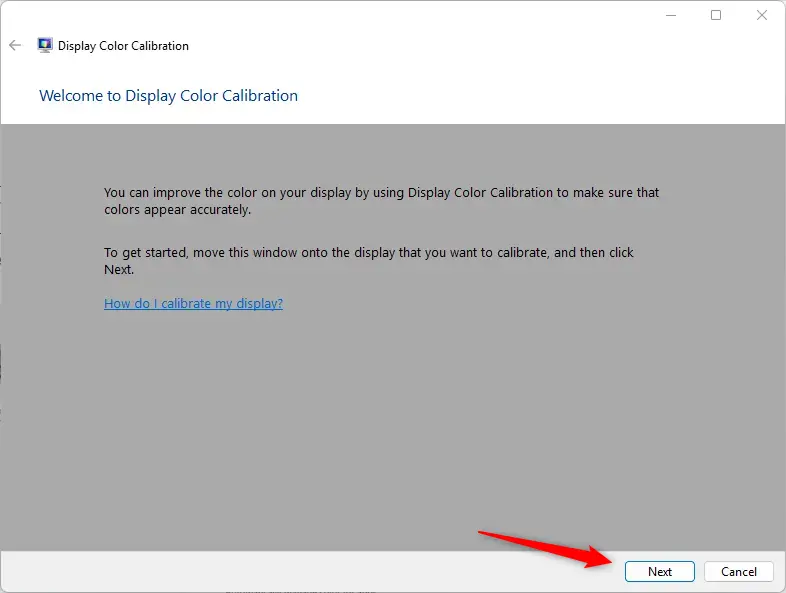
- A new window will appear. Click the Next button to start the calibration wizard.
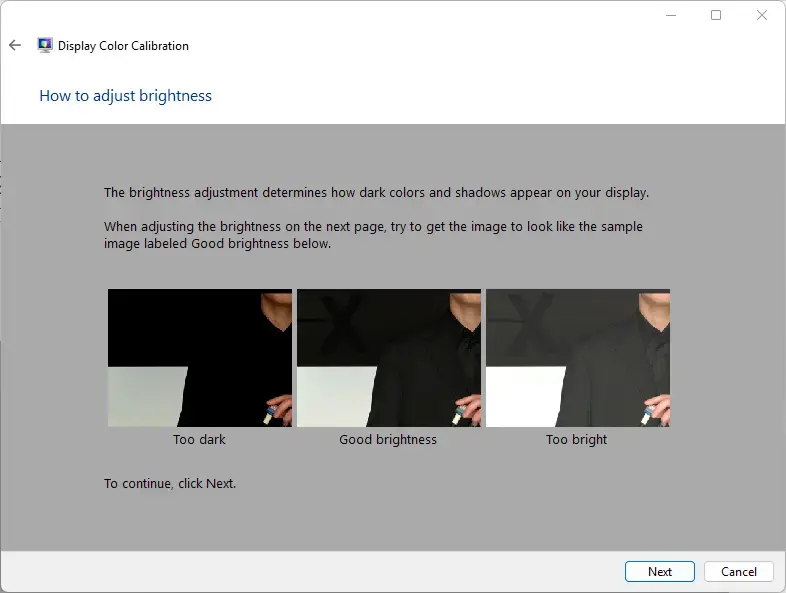
- Follow the on-screen instructions by clicking Next for each step. The wizard will guide you through adjusting colors, brightness, and contrast.
- When you finish all steps, click the Finish button to save your changes.
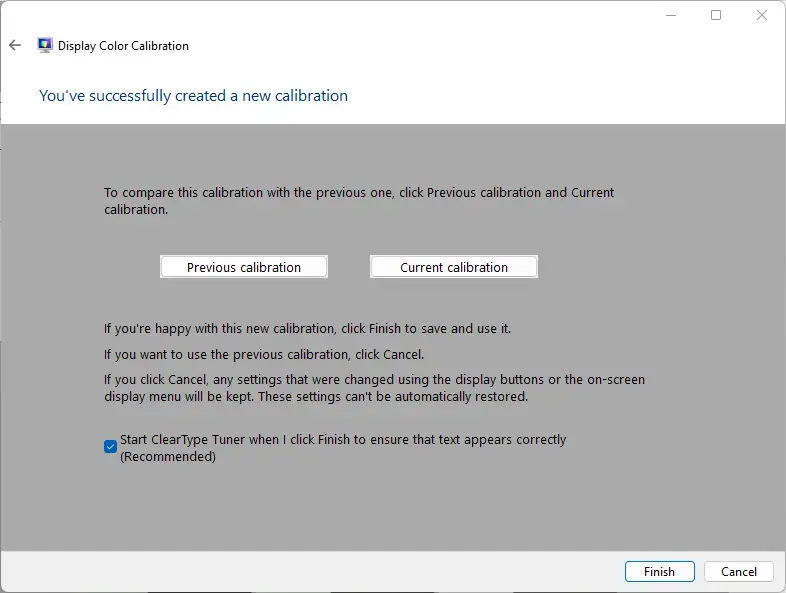
That’s all there is to it! Your display is now calibrated.
Summary
Display color calibration is easy in Windows 11. Just open Settings, go to System, select Display, find Color profile, and click “Calibrate display.” Follow the wizard’s simple steps and finish. Your screen will now show colors more accurately. This improves your viewing experience for photos, videos, and creative work. If you change your monitor or notice color problems later, you can run the calibration again anytime.
Was this guide helpful?


[…] your device. It provides an easy-to-use interface that allows you to customize your device’s display, sound, network, privacy, updates, and […]